 Show Working


GuideAndroid phones, tablets and computers
Show Working on Android and computers: how to set it up
Show Working isn't in the Google Play Store, and it doesn't need to be. On Android phones and tablets, laptops, desktop computers and Chromebooks it runs in your browser at showworking.co.uk/app. In under a minute you can add it to your home screen or install it, so it opens like any other app, with its own icon and no address bar. Below: Android in Chrome, Samsung phones and computers and Chromebooks.
In short. Open showworking.co.uk/app in Chrome, tap the three dots, then Add to Home screen and Install. It's free to start, has the same 16 subjects and worked answers as the iPhone app, and keeps working without signal once it has opened.
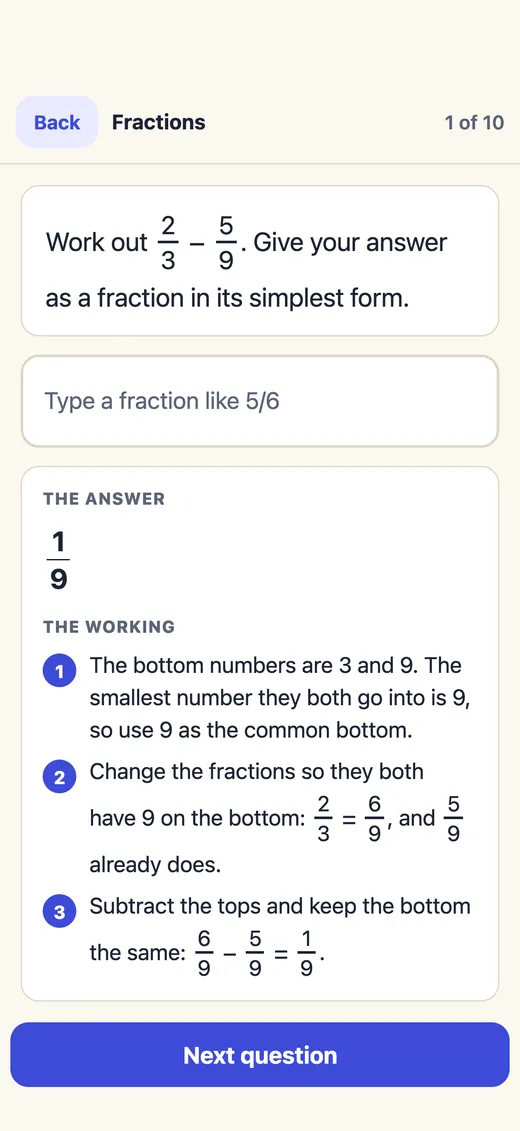
01 / ChromeMost Android phones
How to add it to your home screen in Chrome
Chrome is the browser on most Android phones, including Google Pixel, Motorola and many Samsung phones.
-
Open showworking.co.uk/app
Type it into Chrome's address bar, or tap the link on this page.
-
Tap the three dots, then Add to Home screen
The three dots are at the top right. On some phones the option is called Install app.
-
Tap Install
If Chrome asks whether to install or create a shortcut, choose Install. On some phones the button just says Add.
-
Open it from your home screen
The Show Working icon is on your home screen. It opens full screen, like any app. Next time, start from the icon.
02 / Samsung InternetMany Samsung Galaxy phones
In Samsung Internet, the menu is at the bottom
Open showworking.co.uk/app
Use the Samsung Internet app, the one with the purple planet icon.
Tap the menu
The three lines at the bottom right of the screen.
Tap Add page to, then Home screen
Some versions show an install icon in the address bar instead: tap it and choose Install.
Tap Add
The Show Working icon appears on your home screen.
Using Firefox or another browser? Look in its menu for Add to Home screen or Install. Every common Android browser has one or the other.
03 / ComputersChromebook, laptop, desktop
On a computer or Chromebook, install it the same way
- Chrome, Edge or a Chromebook. Open showworking.co.uk/app, then look for the install icon at the right of the address bar, or open the browser's menu and choose Install. It then opens in its own window, and on a Chromebook it sits in the launcher.
- Safari on a Mac. Open the page, then choose File, Add to Dock.
- Or just bookmark it. It works the same in an ordinary browser tab.
- On a computer you type your answers. Press Enter to check, use * for times and ^ for powers.
04 / The same appiPhone and Android friends together
What you get on Android
- The same 16 GCSE subjects as the iPhone app, with your exam board and tier, and the working for every answer.
- Works without signal once it has opened, because the phone keeps a copy.
- Challenge any friend. iPhone and Android friends get the same ten questions and see each other's scores.
- Sign in to keep your progress on your phone, a tablet, a computer and an iPhone, all the same. It's free and optional.
- Free to start. The first topic of every subject and every challenge are free. You can buy subjects there too, by card after signing in, and they open on every device you sign in on.
One thing iPhone has that Android doesn't: a daily reminder. Browsers can't set one, so add a reminder in your phone's clock or calendar if you'd like a nudge.
05 / QuestionsAll questions
Android, answered
Is Show Working on the Google Play Store?
No. On Android it runs in your browser at showworking.co.uk/app, and you can add it to your home screen so it opens like an app, with its own icon. There is nothing to download from the Play Store.
How do I add Show Working to my home screen on Android?
Open showworking.co.uk/app in Chrome, tap the three dots at the top right, then Add to Home screen, then Install. In Samsung Internet, tap the three lines at the bottom right, then Add page to, then Home screen.
I can’t see Add to Home screen. What do I do?
Check you are on showworking.co.uk/app itself, not a page of search results, and that your browser is up to date. Some phones call it Install app instead, and Samsung Internet puts it under Add page to.
Will my progress be kept on Android?
Yes, on that phone. Clearing your browser’s data for this site deletes it, so sign in for free to keep it with your account, or use Settings, Save my progress to a file.
Does it work on an Android tablet?
Yes, the same way, and it uses the wider screen. You can add it to the tablet’s home screen too.
More guides
No download needed.
Open Show Working and start now.
Free to start, with the working shown for every answer, and no account needed.
On a computer? Use it free in your browser